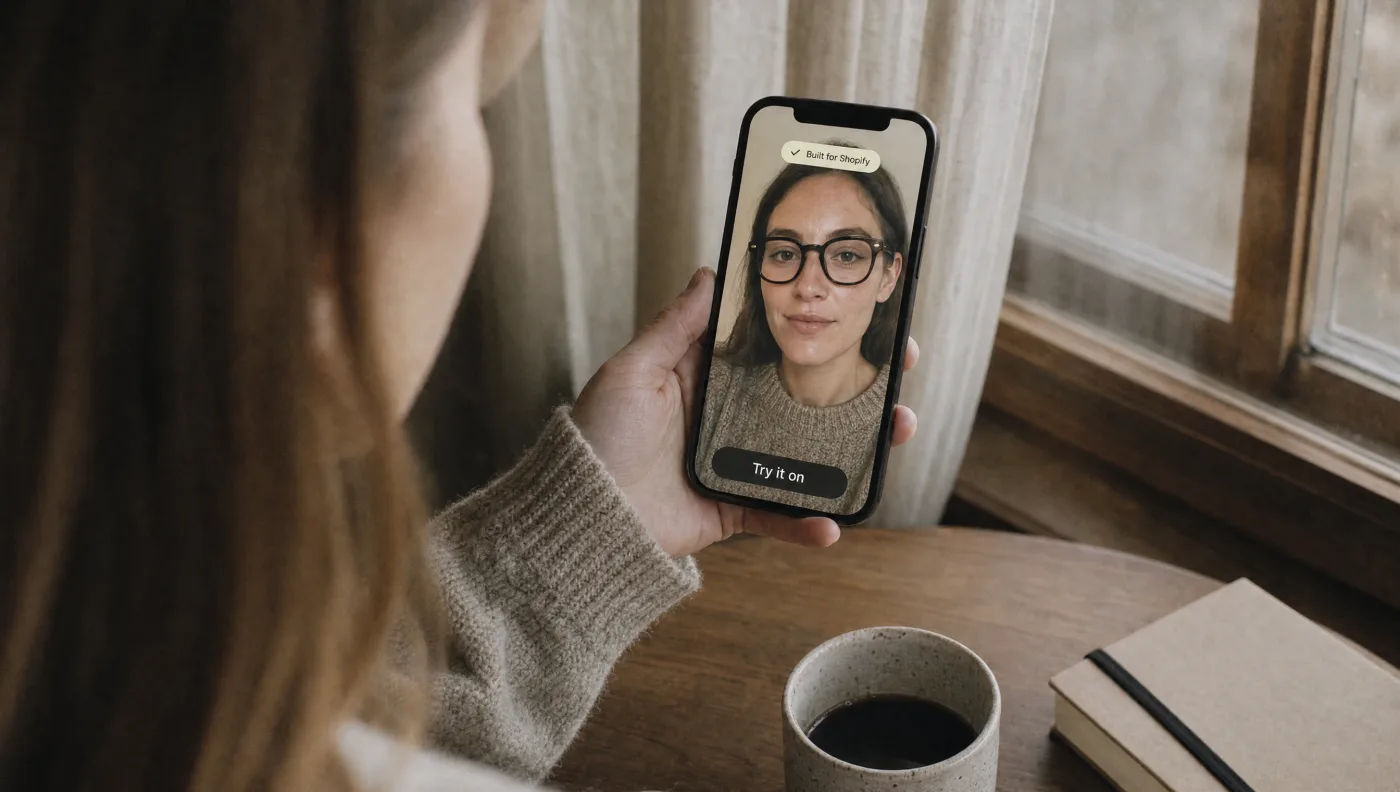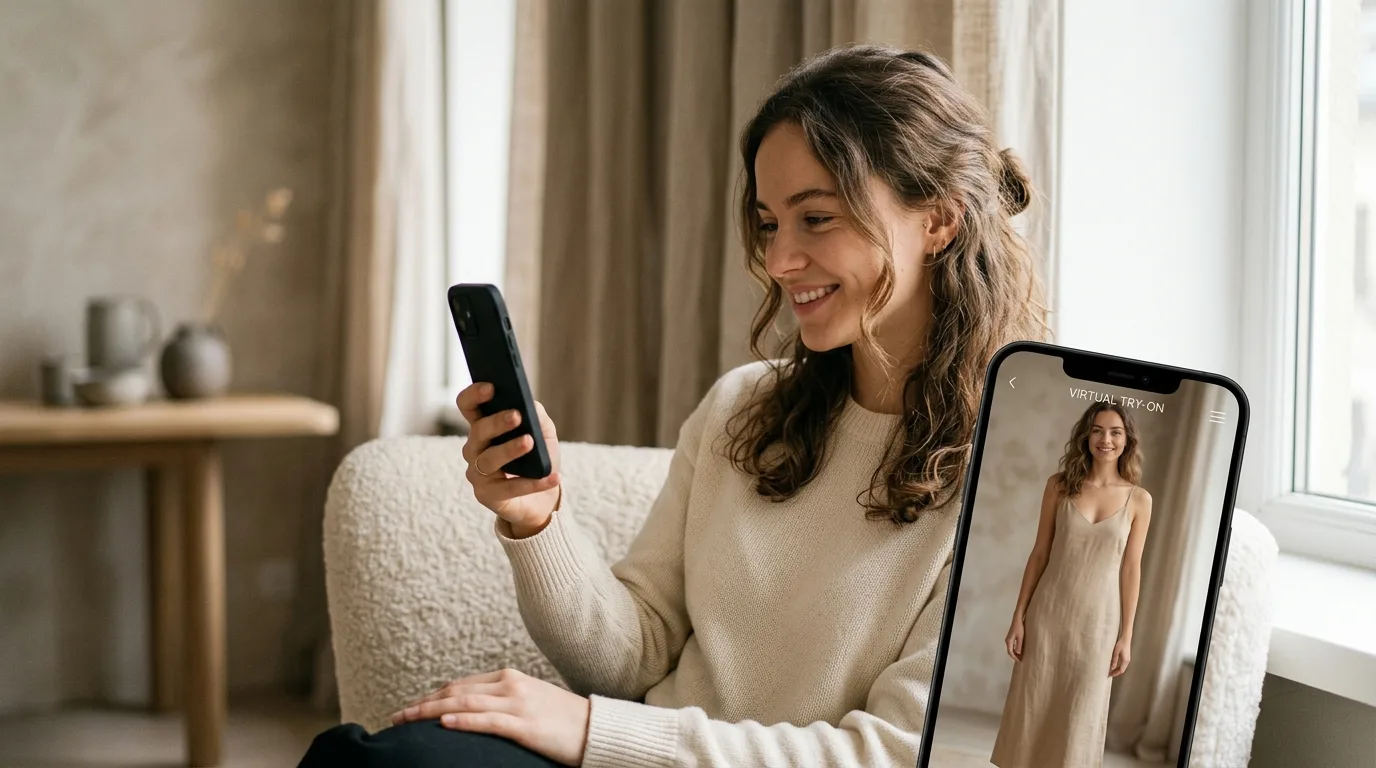
AI try-on is one of the most engaging things you can put on a product page. A shopper uploads one photo and sees your dress, sneakers or necklace on themselves in 10–20 seconds. Most shoppers try a few pieces and move on to buy. A few keep going, and going.
That second group is why we built try-on limits into TryOn Virtual. In a couple of minutes you can:
- Decide how many AI try-ons each shopper gets.
- Let shoppers who want more unlock extra try-ons by giving their email, signing in or creating an account, or sharing a look.
- Keep every email collected, with the products each shopper tried on, flowing straight into your marketing platform. We set up that connection for free.
Your plan stays protected, your keenest shoppers keep trying, and your try-on button starts building your marketing list.
Why limit try-ons at all?
Every AI try-on is a real image generation, and each one counts toward your plan's monthly sessions. That's usually a good trade, because a shopper who sees the piece on themselves has far fewer reasons to hesitate. But usage is not spread evenly across shoppers.
Across TryOn Virtual stores in the last 30 days, the average shopper device ran about 3 AI try-ons. The top 1.6% of devices ran about 20% of all AI try-ons, and the busiest single device ran 100. Some of those are merchants testing their own store. The rest are shoppers trying on half the catalog, people treating your store like a free photo app, or someone sharing your link in a group chat. (TryOn Virtual data, 24 October to 23 November 2026.)
Without a limit, those few devices can use a large share of your monthly allowance before most of your customers arrive. With a limit, every shopper still gets a generous, useful number of try-ons, and the long tail has to give you something in return.
How it works: a three-step ladder
You build the limit as a ladder, in the TryOn Virtual app under Settings → Take control of your usage. Each step unlocks once the one before it runs out.
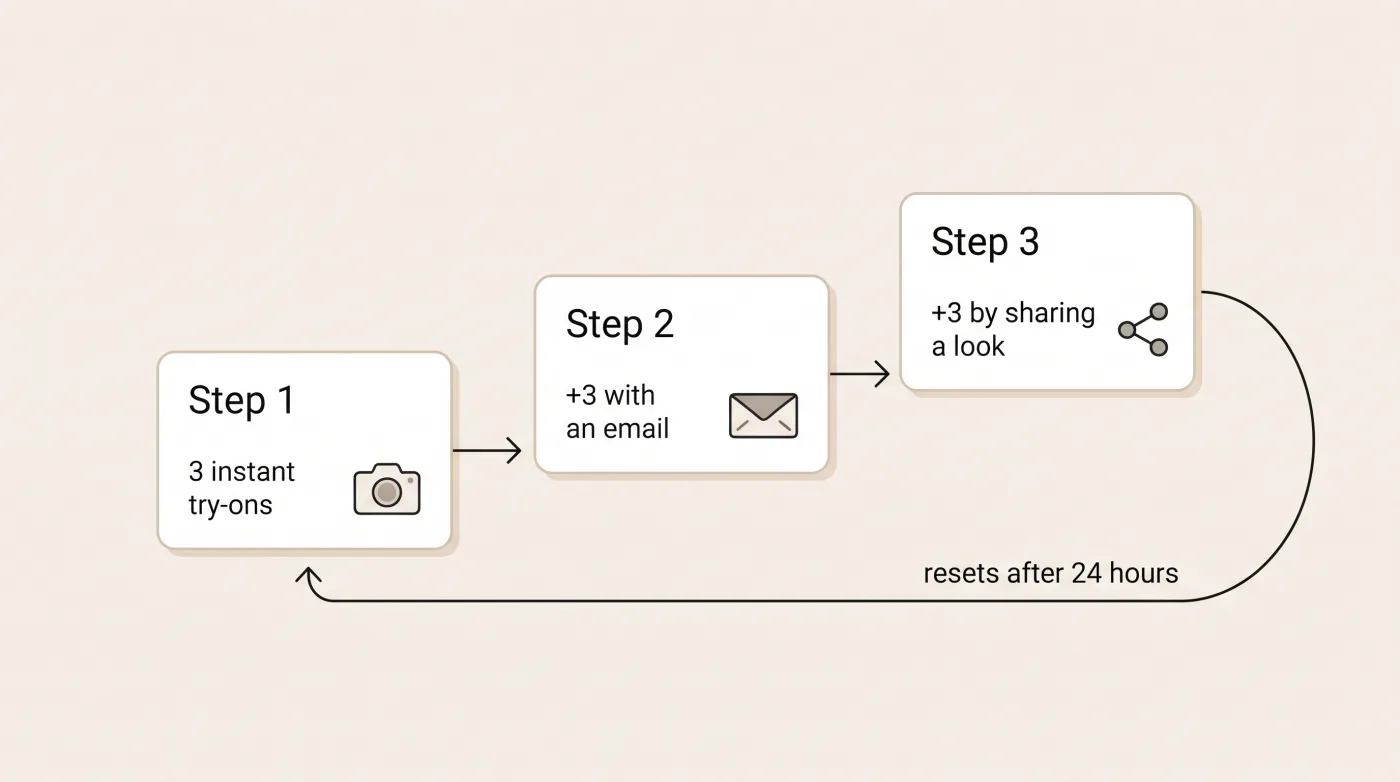
Step 1: Instant try-ons. Every shopper starts here, no questions asked. We recommend 3, which matches what the average shopper actually uses, so most people never notice a limit at all.
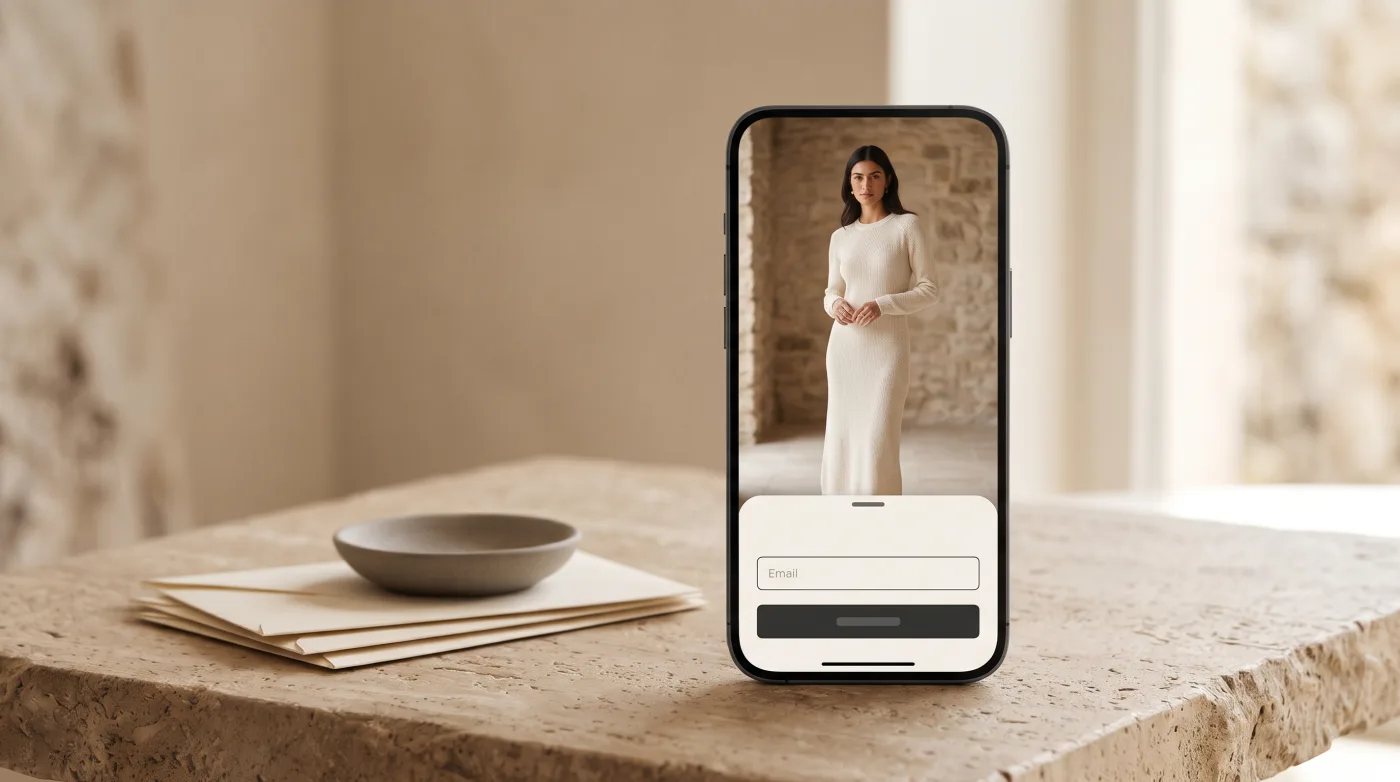
Step 2: Unlock more with an email. When the instant try-ons run out, the shopper can enter their email to keep going. A clear consent line sits above the button: by continuing, they agree that your store may store their email and contact them about its products. Every address goes into your list.
Step 3: Unlock more by sharing a look. After that, a shopper unlocks a final set by sharing a try-on look to social media. That's free reach for your products, posted by someone who already likes them.
Or: unlock more by signing in or creating an account. On Shopify, you can make step 3 a sign-in step instead. Shoppers unlock the final set by logging in to your store or registering a new customer account. Every shopper who keeps trying on becomes a known customer, with an account, order history and a reason to come back.
You choose how many try-ons each step grants, up to 10 per step and 30 in total, and you can switch steps 2 and 3 on or off. The card adds up your total allowance as you go, so you always see exactly what a shopper gets.
When a shopper has used everything, they see a friendly "That's it for today" message. They can still view the looks they saved, and their allowance comes back when the window resets.
Your lead list, built by your try-on button
Step 2 turns the most engaged shoppers on your store into a marketing list. These are people who have already uploaded a photo and seen your product on themselves, which makes them about as warm a lead as you'll get.
In the app, Collected customer emails shows every address with:
- the date it was first collected
- how many try-ons that shopper used
- the products they tried on
That last column is what makes the list useful. You don't just know who is interested; you know what they're interested in. A shopper who tried on your gold hoops three times is telling you exactly which campaign to send them.
Free setup: straight into your marketing platform. Tell us which marketing or automation platform you use, and our team connects it for you at no cost. From then on, every new email, with the products that shopper tried, lands in your platform automatically. It's ready for your flows, segments and automations, with nothing to export and nothing to re-upload.
Prefer a file? Click Export CSV and the full list is emailed to the store owner, ready for a one-off promotion or an ad audience.
Once the list is in your platform, put it to work:
- Product follow-ups. Email everyone who tried a piece but didn't buy it, with a reminder, a styling tip or a limited-time offer.
- Back in stock and new colors. Tell the shoppers who tried a sold-out item, or a style you've just restocked in new colors.
- Launch and sale previews. Give early access to the people who tried the collection you're about to discount or extend.
- Lookalike audiences. Upload the list to Meta or Google Ads to find more shoppers like your most engaged ones.
The list is yours, to use in your own campaigns.
What you never get: your shoppers' photos. The list holds an email address, a try-on count and the products tried, nothing more. The photos shoppers upload, and the try-on images made from them, are never shown to you or anyone else. They're processed only to create the shopper's own result and deleted within 24 hours. Shoppers can share an email with you without wondering who will see their selfie, which is a big part of why they're willing to.
Built so it never gets in the way of a sale
A limit that frustrates shoppers would cost you more than it saves, so a few rules are built in:
- A failed try-on never counts. A try-on is only charged against the shopper's allowance once the image is actually delivered. If something goes wrong, the try-on is released and the shopper keeps it.
- The window starts at the first try-on. The allowance resets 24 hours after a shopper's first try-on, not at midnight, so nobody loses a fresh allowance just because they arrived late in the day. If you'd rather reset weekly or monthly, our support team can set that up for you.
- It fails open. If the limit service ever has a problem, try-on stays available rather than locking shoppers out.
- Changes apply right away. The new limit is enforced as soon as you save. Shoppers already on your store may see the previous prompts for up to an hour.
- It's off until you turn it on. Nothing changes for your shoppers until you switch the limit on.
Recommended settings
| Your situation | Step 1 | Step 2 (email) | Step 3 (share or sign-in) |
|---|---|---|---|
| Most stores | 3 | +3 | +3 |
| High-traffic store on a smaller plan | 2 | +3 | +2 |
| Building an email list is the priority | 2 | +5 | Off |
| Social-first brand | 3 | +2 | +5 (share) |
| Growing customer accounts | 3 | +3 | +5 (sign-in) |
Start with 3 / 3 / 3, then check your collected emails and your plan usage after a week. If emails are coming in and usage is comfortable, raise step 1. If you're close to your plan's limit, lower it.
Try-on limits vs your plan's monthly limit
These are two different limits:
- Your plan's monthly allowance covers all try-on sessions on your store. TryOn Virtual plans start free with 25 sessions a month and go up to 2,500 on Scale. See pricing.
- Try-on limits decide how that allowance is shared between shoppers, so one person can't use up what was meant for hundreds.
Together they give you predictable costs without capping your best customers' experience. The limit applies to AI photo try-on. Live AR try-on for glasses, watches, earrings and necklaces runs on the shopper's own device and isn't affected by try-on limits.
Frequently Asked Questions
What is a try-on limit? A setting in TryOn Virtual that caps how many AI try-ons each shopper can run in a given period. Shoppers can unlock more by entering their email, signing in or creating an account, or sharing a look, in steps you choose.
Will a limit hurt my conversion rate? Not at sensible settings. The average shopper runs about 3 AI try-ons, so a step 1 of 3 means most shoppers never see a limit. The shoppers who do reach it are offered a quick way to keep going rather than a dead end.
Is the email collection GDPR-friendly? The email step shows a consent line above the button, telling the shopper that your store may store their email and contact them about its products. You decide how to use the list, so follow your own privacy policy and local rules when you email it.
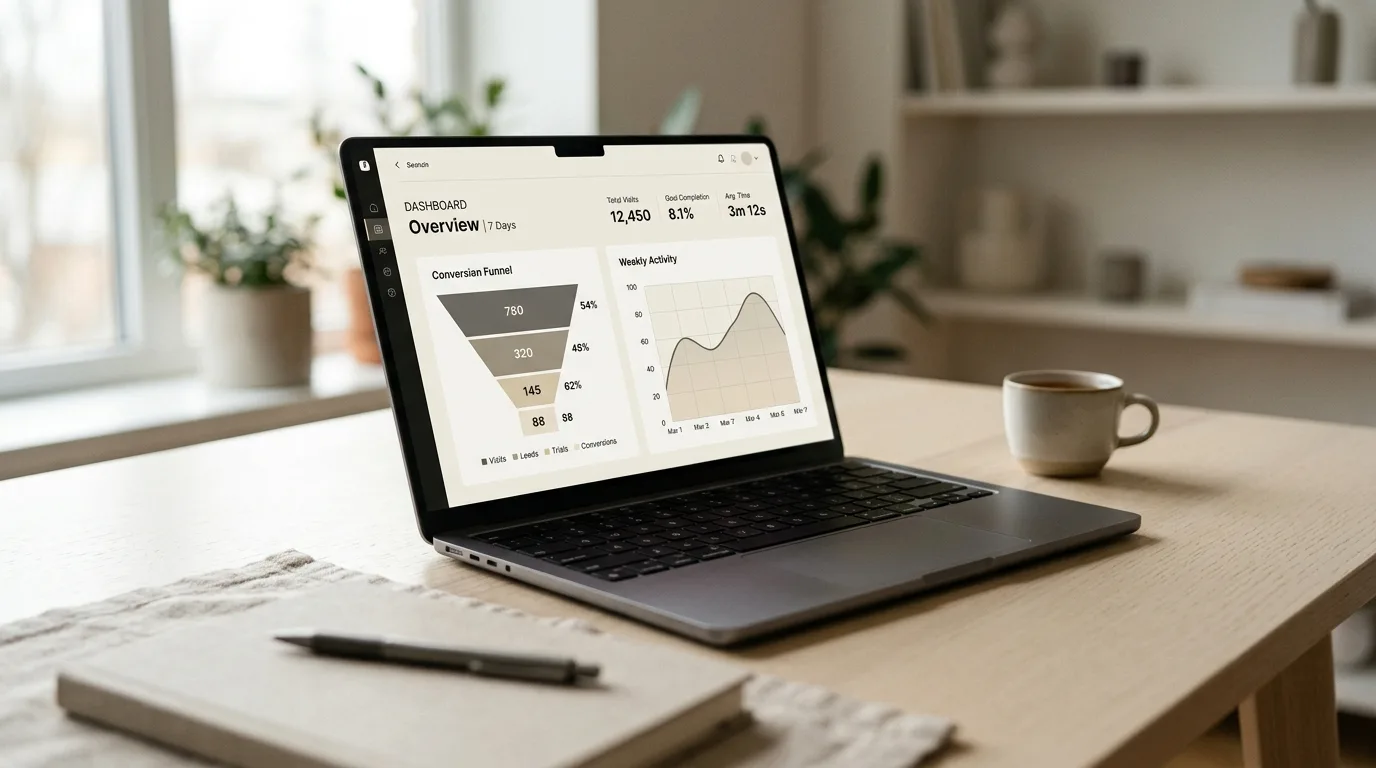
Can I see the photos my shoppers upload? No. You see each collected email, how many try-ons that shopper ran and which products they tried, plus totals in your dashboard. Shopper photos and their try-on images are never shared with merchants, and they're deleted within 24 hours.
Does the list show which products each shopper tried? Yes. Each email comes with the products that shopper tried on, so you can send product-specific campaigns rather than one general newsletter.
Can the emails go straight into my marketing platform? Yes, and the setup is free. Tell us which marketing or automation platform you use, and our team connects it. New emails then arrive there automatically, with the products each shopper tried. You can also export the list as a CSV at any time, for a one-off campaign or an ad audience.
Does it work outside Shopify? Yes. Try-on limits are available on Shopify and in the merchant panel for WooCommerce and custom stores.
How do I turn it on? Open the TryOn Virtual app, go to Settings, switch on Limit try-ons per customer, set your steps and save. If you don't have TryOn Virtual yet, install it free from the Shopify App Store.
The bottom line
AI try-on sells, and try-on limits make it sustainable. Every shopper gets a useful number of try-ons and your plan stays protected. The shoppers who want more give you their email or share your product in return, and you learn exactly which products to market to them.
Start free on Shopify, or see how AI photo try-on works.